Notifications in Ada
Set up the reports and alerts Ada sends by email: recipients, report, format and schedule.
Ada is the action layer on top of Eebz data. In the app, the Ada page is where you tell Ada which reports and alerts to send, to whom and how often. Notifications cover pricing changes, availability, PerfectPage scores, custom reports and more.
Create a notification
Click Ada in the main menu, then New action. The Create Notification form has five parts.
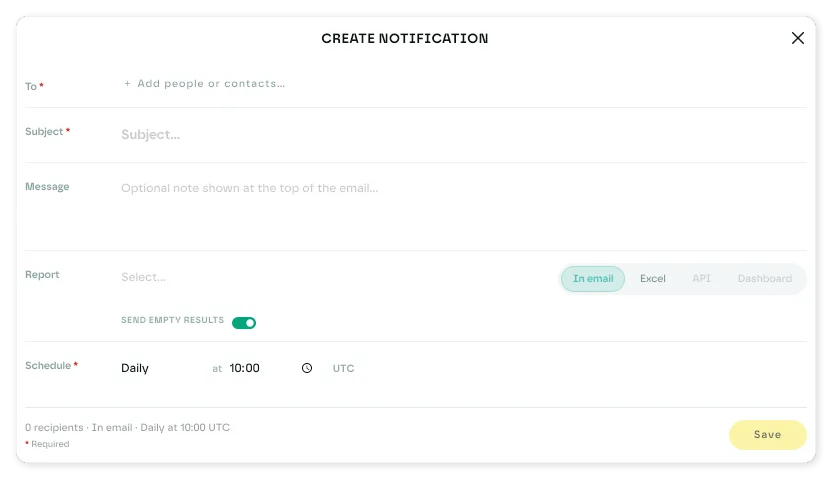
To
Add colleagues or external contacts as recipients.
Subject and message
Give the email a subject. Add an optional message to show at the top of the email.
Report
Choose what Ada sends.
Pricing
- Price Change, Price Errors (changes of 80% or more) and Pricing
- SRP/MAP Exception, MAP Pricing and MAP Violation. MAP reports are for the US; in the UK and Europe, report against SRP.
Availability
- Availability and Availability Exceptions
- New Listings and Lost Buy Box
- Store Availability and Store Availability Exceptions
- Suggested Listings: products from your range that a retailer doesn't list
- Suggested Reorder: products a retailer lists but has had out of stock long enough to be worth reordering. New Release and Catalogue products are flagged after a day out of stock, Late Life products after a week. End of Life and Retired products are never suggested.
Compliance
- PerfectPage Score and PerfectPage Exceptions
- Promotional Compliance: did each agreed promotion run on the agreed dates at the agreed price?
Rank
- Recommended Digital Media: categories and search terms where your AAA products, or the products in your chosen price lists, rank at least 20% worse at one retailer than their median rank at the other retailers in the same market. Retailers run across the top, with the category and rank for each flagged placement.
Reports
- Playground Report, Biggest Revenue Opportunity, Contracts and Contracts Weekly Price
You can also create a notification straight from a filtered table in listings, products, retailers or price lists, with the email icon in the toolbar. Your filters and columns carry over.
Choose how the report arrives: in the email or as an Excel attachment. Send empty results decides whether Ada still sends when there is nothing to report.
Schedule
Choose how often Ada sends (daily, weekly, monthly, quarterly or annually) and the time, in UTC. A summary at the foot of the form shows the recipients, format and schedule before you save.
Manage notifications
The Actions tab lists your notifications, oldest first, with how many are scheduled and how many are paused. From the list you can:
- Trigger now to send without waiting for the schedule. Trigger self sends only to you; Trigger all sends to every recipient.
- Pause a notification to stop it sending. A paused notification can't be triggered, and unpausing it resets the next send time to now.
- Edit any setting with the edit icon.
- Delete the notification for good with the delete icon.
The Email log tab lists the emails Ada has sent.
Last updated October 2026