Account settings
Your profile and two-factor authentication, and the organisation settings admins manage: profile, points, users, KPIs and billing.
Open settings from your name at the top right or from Settings. They are in two parts: your own preferences, and organisation settings that only admins can change.
Your preferences
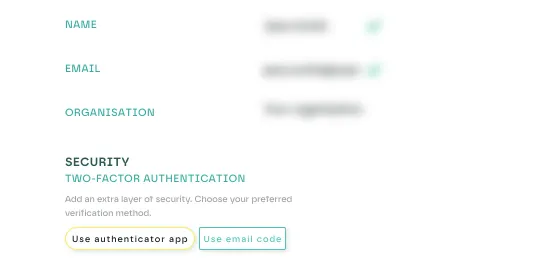
Under Your preferences › General you can see your name, email address and organisation.
Two-factor authentication adds a second check when you sign in. Choose Use authenticator app (recommended) or Use email code. With two-factor on, you can generate recovery codes in case you lose your authenticator. Turning it off asks for your password.
Organisation settings
Everyone can view organisation settings. Only admins can change them.
General
General has four tabs.
- Profile: the organisation name (used in report titles and for billing), the organisation currency reports can use instead of local currency, the date and number format, the timezone, and whether your organisation uses MAP pricing.
- Branding: your brands, with a logo for each, used in reports and exports.
- Export API: your API token and API defaults. See the API overview.
- Import API: for sending your own product data to Eebz.
Points
Points shows how many of your subscription's points you are using, and what uses them: products, PerfectPage, store level extracts and other options. Its tabs list your territories, markets and search terms.
To change the territories your organisation covers, contact Customer Success.
Users
Admins can see every user, add users, edit their details and remove them. The Users page shows each user's name, role and last sign-in, and how many seats you are using against your subscription.
KPIs
PerfectPage: set how scores are calculated for your organisation. Adjust the weight of each parameter, set its threshold and set your target score. Weights must total 100%. See PerfectPage.
Price & Availability: set how price and availability figures are calculated.
Subscriptions and billing
See your active products, subscription terms, billing periods and payment method, and switch auto-renewal on or off for each product.
Your invoices are here too, each with its number, date, payment status and a download link.
Change your password
Go to Settings › Organisation › Users, find your name and click edit. Change your password in the form.
Admins can change other users' passwords from the same screen.
Last updated October 2026