Dashboard views and sharing
Organise your cards into views, download a view and share dashboards with your organisation.
Views are the pages of your dashboard. Each view has its own cards, layout and settings, so you can keep one view for pricing, another for availability and another for a single retailer. For the cards themselves, see dashboard cards.
Work with views
The dots at the bottom of the screen are your views. The Actions panel at the bottom right holds the share, download and delete buttons for the view you are on.

- Switch view by clicking a dot.
- Rename a view by clicking the dot of the view you are on.
- Add a view with the + in the dot bar. The current view needs at least one card first.
- Delete a view with the delete icon in the Actions panel at the bottom right. You need more than one view, and you are asked to confirm because this can't be undone.
A new view is empty and offers two choices: Add a card, or Add a dashboard to start from one a colleague has shared.
Download a view
Click the download icon in the Actions panel to save every card in the current view as one PNG image, named after the view.
To download or email a single card instead, see download a card.
Share a dashboard with your organisation
- Open the view you want to share.
- Click the share icon in the Actions panel.
- Enter a template name. It starts with the view's name.
- Click Share.
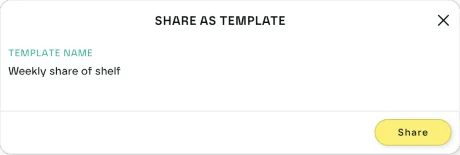
Everyone in your organisation can now add the view as a dashboard. It starts linked: as you change the cards, the shared version updates, and colleagues who use it get your changes the next time they open their dashboard.
Add a shared dashboard
- Add a new view with the + in the dot bar.
- Click Add a dashboard.
- Pick a dashboard from the list. Each one shows who shared it and which cards it holds.
The view takes the dashboard's name and cards.
Linked and locked dashboards
The Actions panel shows a chain icon on a linked dashboard and a chain with a padlock on a locked one.
If you shared the dashboard:
- Lock stops colleagues unlinking, so everyone stays on your version.
- Unlock lets them unlink again.
- Unlink stops sending updates. Colleagues keep the cards they have, but no longer receive your changes. This can't be undone.
If you added someone else's dashboard:
- While it is linked, the cards are read only. You can't add, configure, move or resize cards, but you can still download and share them.
- Unlink turns the view into your own copy that you can change. You stop receiving updates, and this can't be undone. Unlink isn't available while the dashboard is locked.
Delete a shared dashboard
In the Add a dashboard list, the person who shared a dashboard, or an organisation admin, can delete it with its delete icon. Views that use it keep their cards and become ordinary views.
Organisation admins can also set the dashboard that new users start with. See set your organisation's default dashboard.
Last updated October 2026