Dashboard cards
Add, configure, arrange, download and share the cards on your Eebz dashboard.
Your dashboard is a grid of cards. Each card shows one type of data with its own filters, and you can add as many as you need and arrange them however you like. To group cards into views and share whole dashboards with colleagues, see dashboard views and sharing.
Add a card
Click the + button at the bottom left of the dashboard. The menu is grouped into Sales, Product, Retailer, Ada, PerfectPage and Marketing. Pick a category or subcategory, then click the card you want.
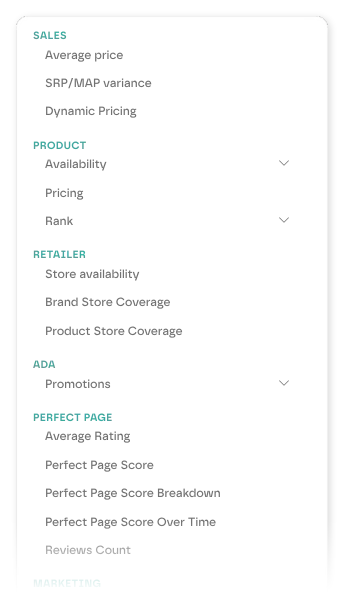
The card's settings panel opens on the right so you can configure it straight away.
Each view holds up to 50 cards. If you close the settings panel without configuring a new card, the card is removed.
Card sizes
- KPI cards are compact tiles with a single figure, such as Average Price or PerfectPage Score. Use them for at-a-glance numbers across the top of a view.
- Standard cards are wider and hold charts and breakdowns, such as Pricing, Availability over time or Share of Shelf.
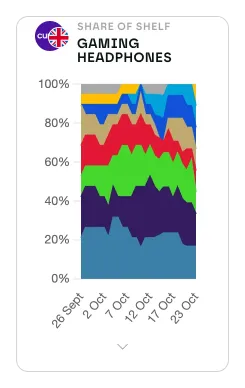
Configure a card
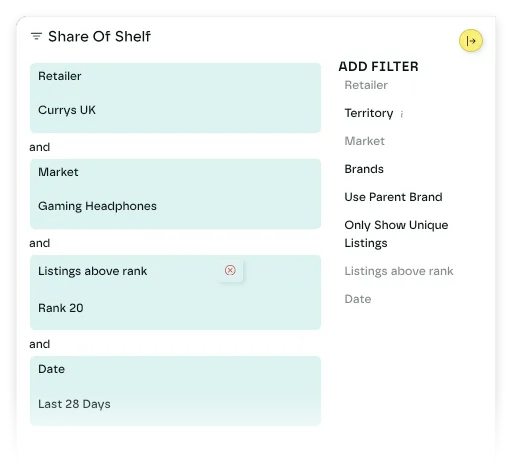
Hover over a card to show its buttons at the top right, then click the settings icon to open its settings panel. Each filter on the card has its own filter card on the left. The filters you can add are listed on the right under Add Filter, and the bottom of the panel describes what the card shows.
- Add a filter by clicking it in the Add Filter list.
- Change a filter by editing the value in its filter card.
- Remove a filter with the delete icon on its filter card.
Some filters depend on another: you need to choose a product before you can choose a SKU. A filter that is waiting on another is greyed out in the Add Filter list.
Changes apply and save as you make them. There is no save button.
Required filters
Every card type needs certain filters before it can show data. When you add a card, Eebz adds its required filters for you and fills each one with a starting value, so most cards show data straight away. Change the values to suit.
- Required filters can't be removed. Their filter cards have no delete icon, but you can still change the value.
- A red Required marker means a filter still needs a value. It shows on the filter card, or in the Add Filter list if the filter hasn't been added yet.
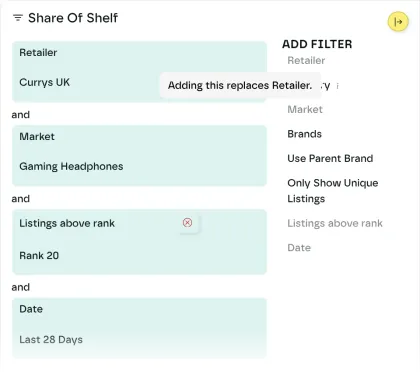
- Some requirements are either/or. A Share of Shelf card needs a Market, a Date, and either a Retailer or a Territory. To switch from one option to the other, click the other in the Add Filter list. An info icon beside it tells you which filter it replaces.
Delete a card
Open the card's settings and click the red delete icon at the bottom left of the panel. The card is removed straight away, with no confirmation.

Arrange cards
- Move a card by dragging its top edge.
- Resize a card by dragging its bottom-right corner. The smallest size is two columns by two rows.
Cards move up to fill any gaps.
Download a card
Hover over a card to show its buttons at the top right: download, share (the envelope) and settings.

Click the download icon to save the card as a PNG image. The card's buttons are left out of the image.
To save every card in a view as one image, see download a view.
Share a card by email
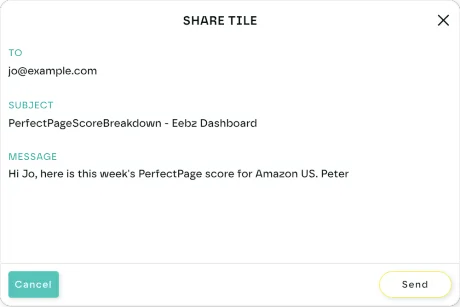
Click the share icon (the envelope) at the top right of a card. Eebz takes an image of the card and opens a Share tile window.
- Enter the recipient's email address in To.
- Edit the Subject if you like. It starts with the card type followed by Eebz Dashboard.
- Add a Message. This is optional.
- Click Send.
The recipient gets an email with the card attached as a PNG. It is a snapshot of the card at that moment, so they don't need an Eebz account to see it. The email comes from Eebz rather than your own address, so say who it is from in the message.
Use filters to focus each card, and see PerfectPage for the PerfectPage cards.
Last updated October 2026