Set your organisation's default dashboard
For organisation admins: choose the dashboard and table layouts that new users start with.
Organisation admins can set up a default dashboard for the whole organisation. Everyone added to your organisation afterwards starts with a copy of it, so new colleagues see useful cards from their first login.
This needs the admin role. If you don't see Default View in your user menu, ask an admin in your organisation.
Edit the default dashboard
- Click your name at the top right to open the user menu.
- Choose Default View. A Default view banner appears at the top of the app, and the user menu shows default in place of your name.
- Build the dashboard as normal. Add views and cards, and set their filters and layout. See dashboard cards and dashboard views.
- When you have finished, open the user menu and choose User View to return to your own dashboard.
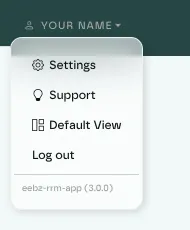
While the banner shows, your changes save to the organisation default, not to your own dashboard. Your own dashboard is unchanged when you switch back.
Table column layouts work the same way. Any column layout you set while in Default View becomes the default for new users too.
What your users get
- New users get a copy of the default dashboard when their account is created. It is their own copy, so they can change or delete any card or view.
- Existing users keep their current dashboard. Changing the default later doesn't update anyone who already has an account.
Give an existing user the default
- Go to Settings › Organisation › Users and open the user.
- Click Reset next to Dashboard Settings. To reset their table columns as well, click Reset next to Table Settings.
- Click Save.
This replaces the user's dashboard with the current default, so any cards they added themselves are lost. Check with them first.
To keep a set of cards the same for everyone over time, share the dashboard and lock it instead. Colleagues then receive your updates automatically.
Last updated October 2026