Composable columns
Choose, resize, reorder and save the columns in any table in Eebz.
Every table in Eebz lets you choose its columns. Each view draws on a pool of more than 100, so you show only what matters for the job in hand.
Add and remove columns
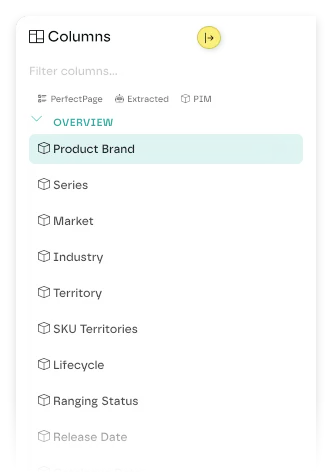
Click the Columns icon in the toolbar, next to the filter and download buttons. A panel opens on the right with every available column, grouped into sections such as Overview, Pricing & Availability, Discovery & Ranking, Promotions & Retail Media and Content Compliance.
- Add a column by clicking its name. It appears in the table straight away.
- Remove a column by clicking an active column (marked with a tick).
- Search the panel by name when the list is long.
Width, order and sort
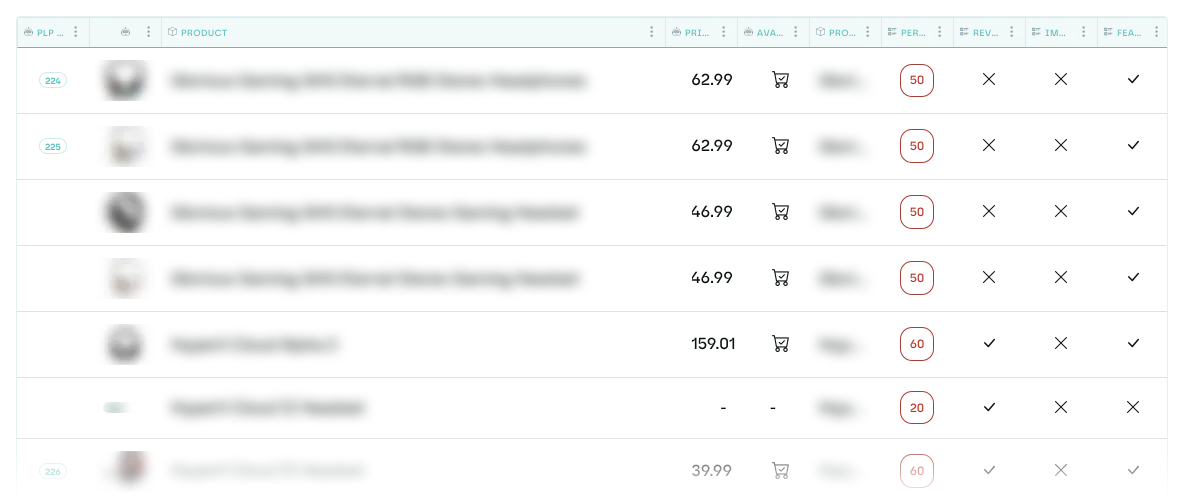
- Resize a column by dragging the edge of its header.
- Reorder columns by dragging their headers.
- Sort by clicking any sortable header.
Save a column set
Your columns are saved with the current tab. Each tab keeps its own set, so one tab can be set up for pricing and another for content without either affecting the other.
Save a tab as a template and colleagues in your organisation can apply the same setup to their own views.
Columns that depend on your setup
Some columns appear only when a feature is switched on:
- PerfectPage columns, such as Category Rank and Market Mismatch, need PerfectPage on for that product.
- Amazon columns, such as Primary Node Rank and Buy Box, appear only for Amazon.
- Trade-in columns need the trade-in programme switched on.
Icons at the top of the panel show where each column's data comes from: PerfectPage, the retailer page (extracted) or your own product information (PIM).
Last updated October 2026