Tracking products
Start tracking any product Eebz has from search, see what it costs in points before you confirm, and choose its options.
Eebz finds products at the retailers it reads, including products your organisation doesn't track yet. You can track any of them, from a new release to a product that has been on sale for years. Tracking a product adds it to your Products list, so its data shows on your dashboard cards. Each tracked product uses points from your subscription, and Eebz shows you the cost before anything changes.
Track a product from the Products list
- Type part of the product's name in the search bar at the top of any page. A GTIN or MPN works too. See search.
- Click the Products tab at the top of the results. Every product with that name is listed, tracked or not.
- Tick the box in the Track column next to the product you want.
- Check the points and options in the confirmation window, then click Track.
Eebz tracks the product and opens its page, with its listings at each retailer in the middle and its variants on the right.
Can't find the product you want to track? If it doesn't appear in search, Eebz doesn't have it yet. Contact Customer Success and we'll add it, so you can then track it.
The shortcut: track from the search results
If the product appears in the search results, you don't need to open the Products list. Products you don't track yet have a Track button beside them. Click it to go straight to the same confirmation window.
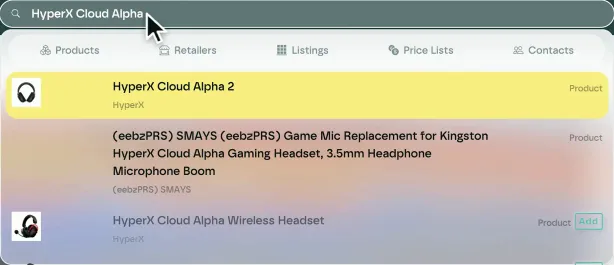 A product you don't track yet has a button beside it, so you can track it without leaving the search.
Check the cost before you confirm
Nothing changes until you click Track. The confirmation window shows:
- Available points: what your organisation has left
- Points to add: what this product will use
- Total points available after adding: what you'll have left once it's tracked
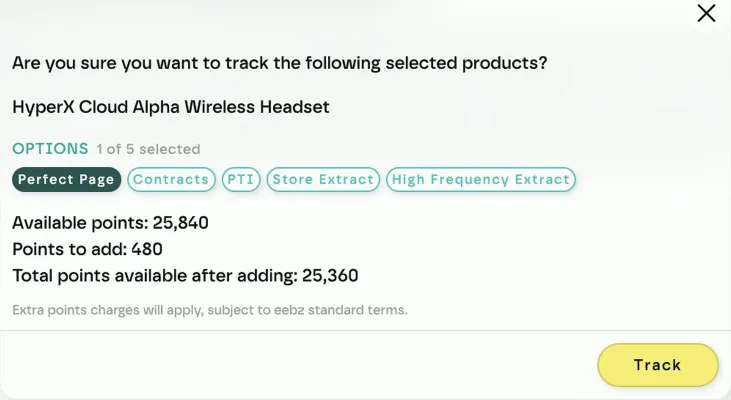 PerfectPage is selected by default. The window shows your points before and after.
Options
PerfectPage is selected by default. Click another option to add it: Contracts (contract pricing), PTI (trade-in extracts), Store Extract or High Frequency Extract. See types of extract for what store, trade-in and contract extracts capture.
How long a product uses points
A tracked product counts towards your points for its whole lifecycle, and stops automatically when that lifecycle ends. Retired products are not included in your points.
You set the lifecycle yourself. When a new version replaces an old one, the old one retires, so the new version usually costs no more.
See your points
Go to Settings › Organisation › Points for the full picture:
- Overview: points used against your allowance, search terms used, your total and retired products, and the points each option costs per product
- Territories: the points each territory adds
- Markets and Search terms: the markets and search terms you follow
To change the territories your organisation covers, contact Customer Success. See account settings.
Last updated October 2026