Chrome extension
See your Eebz data for a product in a side panel next to its retailer page, without leaving the page.
The Eebz extension for Google Chrome shows your Eebz data for a product while you're on its retailer page. Open a product page at a retailer you track, click the Eebz icon, and a side panel opens beside the page with that listing's live data. Switch tab or move to another product and the panel follows.
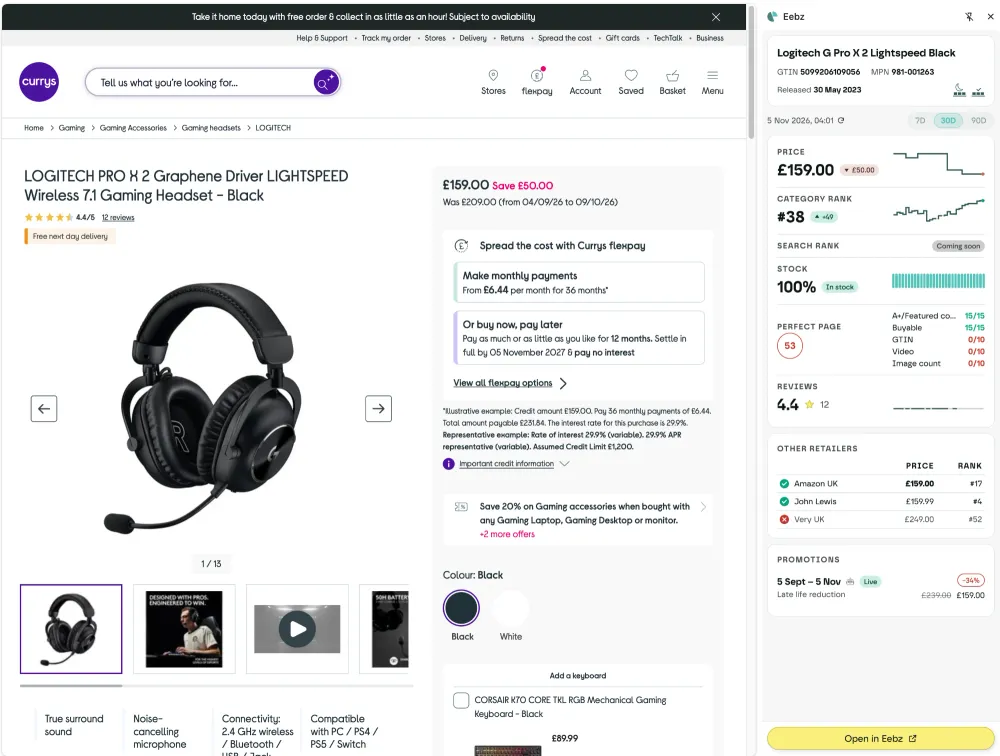 The panel sits beside the retailer's page, so you can check Eebz's data against what shoppers see.
Install the extension
- Open the Eebz extension in the Chrome Web Store and click Add to Chrome.
- Click the puzzle-piece icon in Chrome's toolbar and pin Eebz, so its icon is always in view.
- Sign in to Eebz in the same Chrome profile. The extension uses that sign-in, so there is nothing else to log in to.
If you're signed out, the panel shows a Sign in button that opens Eebz in a new tab. Sign in there and the panel loads your data.
Open the panel
Go to a product page at a retailer your organisation tracks and click the Eebz icon. The panel stays open as you browse and updates for whichever tab you're looking at.
Choose 7D, 30D or 90D to set the period the changes and charts cover. The date beside them is when the data was last extracted; click the refresh icon to load it again. Open in Eebz at the bottom opens the product's listings in Eebz.
What the panel shows
- Product. The product name, GTIN, MPN and release date, with icons for its lifecycle and range status. If the page matches more than one variant in Eebz, choose the one you want from the list.
- Price. Today's price at this retailer, the change over the period and a price history chart.
- Category rank. The product's position in the retailer's main category, with the change over the period and its history.
- Stock. The share of days the product was in stock over the period, with a strip showing each day. Days with no extracted data show in light grey.
- PerfectPage. The listing's PerfectPage score, with the checks that count most for your organisation and the points each one scored.
- Reviews. The average rating, the number of reviews and the rating's history.
- Other retailers. The same product at your other retailers, with each one's price and category rank. A tick means in stock and a cross means out of stock. Click a retailer to open its product page.
- Promotions. Planned and detected promotions for the listing, with their dates and prices. Live marks a promotion running now, the extract icon marks one detected from extracted prices, and Not detected marks a planned promotion that didn't show in the retailer's prices. The struck-through price is the retailer's own was price where Eebz has captured it, otherwise the usual price before the drop; hover over it to see which.
Search rank is coming soon.
Messages you may see
| Message | What it means |
|---|---|
| Not a tracked retailer | The site isn't a retailer your organisation tracks in Eebz. |
| Not tracked yet | Eebz has no tracked listing for this page. Track the product in Eebz, or if Eebz doesn't have it yet, email esupport@eebz.com with the page link. |
| Paused in Eebz | Data collection for this listing is paused. |
| Eebz data unavailable | Eebz couldn't load the data. Click Try again. |
Your privacy
The extension sends a page's address to Eebz only when the page is on a retailer your organisation tracks. It never reads the content of the pages you visit and doesn't store your browsing. The Chrome extension privacy policy has the detail.
Last updated