Set the required filters
Which filters each row and column needs before you can save, and how the report filters work together.
Filters decide which data goes into the report. Some rows and columns need a filter set before the report can be saved.
Open the filters
Click the yellow filter button at the top left of the builder. The Report parameters panel opens, with its tabs grouped into Scope, Products, PerfectPage and Time & more.
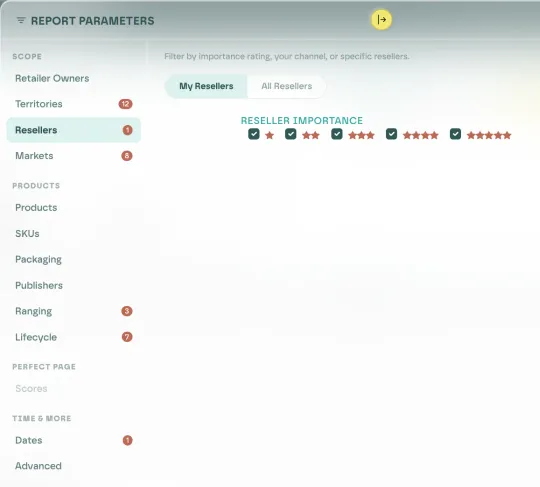
The number next to a tab is how many values it has selected. It isn't a warning.
When a filter is missing
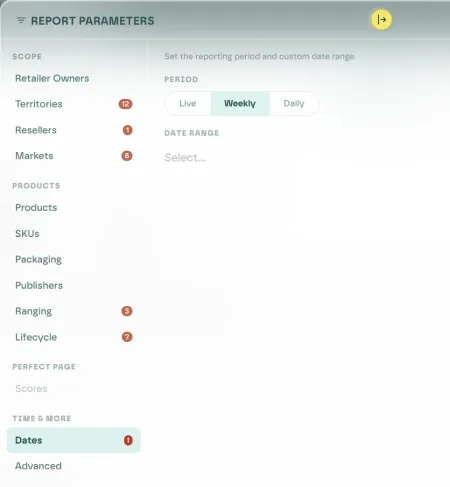
If a row or column needs a filter that isn't set, the filter button and that filter's tab show a red !, and Save & View stays disabled. Open the tab with the ! and set it.
What each row or column needs
| If the report uses… | You must… | Starts as |
|---|---|---|
| Territories | Keep at least one territory | All territories |
| Markets | Keep at least one market | All markets |
| Products | Keep at least one product | All your products |
| Retailers | Choose importance ratings (My Retailers) or specific retailers (All Retailers) | All importance ratings |
| SKUs | Pick a price list, specific SKUs or SKU attributes | Nothing picked |
| Retailer Owners | Pick at least one owner | Nothing picked |
| A Weekly or Daily period | Pick a rolling window, or Range with a start and an end date | Live |
SKUs is the filter that most often blocks a report, because nothing is picked to start with.
The Weekly or Daily rule applies whether or not Date is the column.
Retailers: ratings or named retailers
The Retailers tab has two modes, and you can only use one:
- My Retailers filters by your importance ratings, from one to five stars. See rate your key retailers.
- All Retailers filters by retailers you pick by name.
Choosing one clears the other.
SKUs: one type at a time

Pick SKUs by Price Lists, SKUs or Attributes. Only one type works at a time, and switching type clears your picks. See price lists.
Set products before SKUs
The SKU and SKU attribute pickers only list SKUs from the products you have selected. Set the Products tab first.
Dates
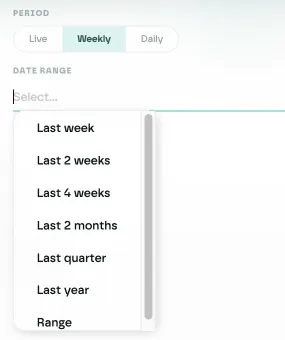
Choose a Period of Live, Weekly or Daily. For Weekly or Daily, also choose a Date range: a rolling window from Last week to Last year, or Range for fixed start and end dates.
Filters combine
Filters narrow the report together. They don't override each other. A retailer picked by name that is outside your chosen territories won't appear in the report.
Other filters
- Packaging and Publishers narrow the products in the report.
- Ranging keeps listings that are In range, Missing or Out of range. See ranging.
- Lifecycle keeps products at chosen lifecycle stages, from Pre order to Paused. See lifecycle.
- Scores filters by PerfectPage score. It only turns on for PerfectPage report types: see report types.
- Advanced keeps only values equal to, not equal to, greater than or less than a number you enter, or only listings with an active promotion.
Last updated