Choose your rows
Which rows you can add, in which order, and how to get combinations such as territories and markets in one report.
Rows group the data down the page. Add as many as you need: each new row nests inside the one above it, such as each retailer inside its territory.
Add a row
Click + Add under the rows on the left and pick a row. Any row can go first.
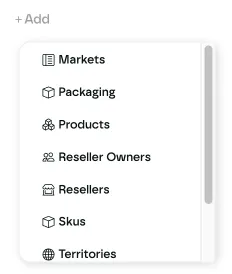
To remove a row, hover over its card and click the red delete icon.
Only the last row matters
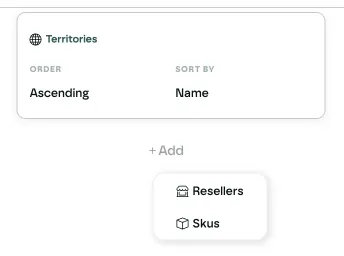
Each row you add limits the next one. The Playground only checks the row directly above, so after Territories you can only add Retailers or SKUs.
| After this row… | …you can add next |
|---|---|
| Territories | Retailers, SKUs |
| Markets | Products, Retailers, Publishers |
| Retailers | Markets, Retailer Owners, Territories, SKUs, Packaging, Products, Publishers, PerfectPage Metrics |
| Retailer Owners | Retailers |
| Products | Markets, SKUs, Packaging, PerfectPage Metrics |
| SKUs | Products, Territories, Packaging, PerfectPage Metrics |
| Packaging | Products, SKUs, Retailers |
| Publishers | Products, SKUs |
| PerfectPage Metrics | Nothing: it is always the last row |
A row you have already used doesn't appear in the menu again.
Example: territories and markets
You can't add Markets straight after Territories, or Territories straight after Markets. Go through Retailers instead: Territories → Retailers → Markets.
This follows how the data is organised. A market is a category such as PlayStation or Audio, and each retailer belongs to one territory, so retailers link the two.
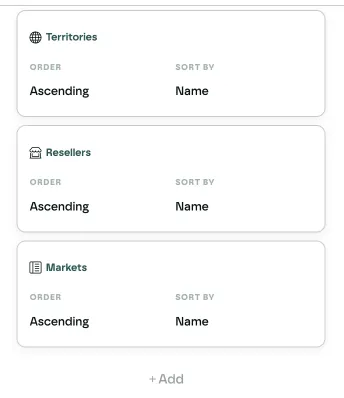
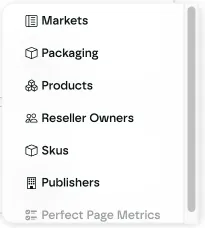
After Retailers, the menu offers every row that can follow it:
PerfectPage Metrics rows
PerfectPage Metrics is greyed out unless the report type is Overall score. It is always the last row. If you change the report type afterwards, the PerfectPage Metrics row and its score filters are removed. See report types.
Rows and the column
A dimension can't be a row and the column at the same time. With Territories and Retailers as rows, for example, the column menu only offers Date, Product and SKU. See choose a column.
Sort each row
Each row card has two settings:
- Order: Ascending or Descending
- Sort by: Name, or Value to sort by the numbers in the report
Sort by Value has no effect for the Availability, Lost buy box, Tag and Voucher report types, because their cells aren't numbers. Those rows sort by name instead.
Add rows in a valid order
You can drag rows to reorder them, but dragging isn't checked against the rules above. A report reordered into an invalid order, such as Markets → Territories → Retailers, may not show the data you expect. To change the order, remove the rows and add them again in a valid order.
Last updated